Slow Windows PC? 10 Proven Fixes to Speed It Up (Step-by-Step)
By FixNerdyPublished 5 min read
Table of contents
A slow Windows PC fix doesn't have to mean buying a new computer. In my repair work, most "slow" PCs that come across the bench are fixed with free software tweaks — and the rest usually need just one cheap upgrade. This guide walks you through 10 proven fixes for Windows 10 and Windows 11, from the 2-minute quick wins to hardware upgrades, so you can stop waiting for your PC and get back to work.
Quick diagnosis: what's slowing your PC down?
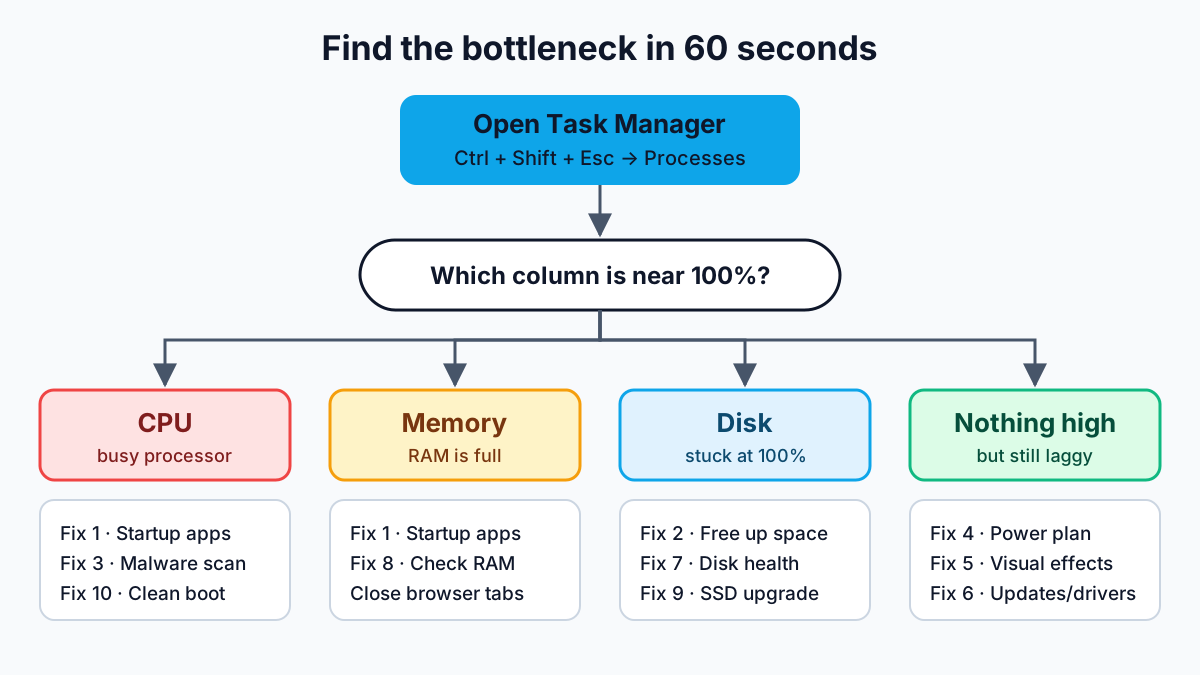
Before changing anything, spend 60 seconds finding the real bottleneck. Press Ctrl + Shift + Esc to open Task Manager, click Processes, and look at which column is close to 100%.
| Symptom | Likely cause | Start with |
|---|---|---|
| Slow only for the first few minutes after boot | Too many startup apps | Fix 1 |
| Disk at 100%, constant hard-drive noise | Full or failing HDD | Fixes 2, 7, 9 |
| Fans loud, CPU high with nothing open | Malware or background task | Fixes 3, 10 |
| Memory above 85% with a few tabs open | Not enough RAM | Fixes 1, 8 |
| Laptop slow on battery only | Power-saving mode | Fix 4 |
| Everything feels "laggy" but usage looks normal | Animations, old drivers | Fixes 5, 6 |
Slow Windows PC fix: 10 proven steps
Work through these in order. The first six are free and take under 30 minutes in total.
1. Disable unnecessary startup apps
Every app that launches at startup eats memory and slows boot time. Open Task Manager, then go to Startup apps (Windows 11) or the Startup tab (Windows 10). Right-click anything you don't need the moment Windows starts — chat apps, game launchers, updaters — and choose Disable.
2. Free up disk space with Storage Sense
Windows needs free space for updates, virtual memory and temporary files. Go to Settings → System → Storage, open Temporary files, tick the safe items (temporary files, Delivery Optimization files, Recycle Bin) and click Remove files. Then turn on Storage Sense so Windows cleans up automatically. Aim to keep at least 15–20% of your system drive free.
3. Scan for malware
Crypto-miners and adware run silently and steal CPU power. Open Windows Security → Virus & threat protection → Scan options, choose Microsoft Defender Antivirus (offline scan) and click Scan now. Your PC restarts and scans before Windows loads, which catches threats a normal scan can miss.
4. Switch to a faster power mode
On laptops especially, Windows may throttle performance to save battery. In Windows 11 go to Settings → System → Power & battery → Power mode and select Best performance while plugged in. In Windows 10, click the battery icon and drag the slider to Best performance.
5. Turn off visual effects
Animations and shadows look nice but slow down older hardware. Press Win + R, type SystemPropertiesPerformance and press Enter. Choose Adjust for best performance, then re-tick Smooth edges of screen fonts so text stays readable. Click Apply.
6. Update Windows and drivers
Old drivers cause stutter, high CPU usage and crashes. Open Settings → Windows Update, install everything, then check Advanced options → Optional updates for driver updates. For graphics cards, download the latest driver directly from your GPU or laptop manufacturer's website.
7. Check your drive's health
A failing drive is one of the most common causes of a suddenly slow PC. Install the free tool CrystalDiskInfo and check the Health Status: Good is fine, Caution means back up now, Bad means replace the drive. You can also run a quick check in PowerShell:
Get-PhysicalDisk | Select-Object FriendlyName, MediaType, HealthStatus, Size8. Check if you're running out of RAM
Open Task Manager → Performance → Memory. If "In use" sits above 80–85% during normal work, Windows is swapping data to the disk, which is dramatically slower. Close heavy browser tabs, or upgrade: 8 GB is the practical minimum for Windows 11, and 16 GB is the sweet spot for multitasking.
9. Upgrade to an SSD
If your PC still boots from a mechanical hard drive (HDD), an SSD is the single biggest upgrade you can make — usually for less than the cost of a dinner out. Most SSD brands provide free cloning software, so you can copy Windows, apps and files across without reinstalling.
| HDD (5400 rpm) | 55 s |
|---|---|
| SATA SSD | 18 s |
| NVMe SSD | 12 s |
Approximate cold-boot times on the same mid-range PC. Real results vary with CPU, startup apps and Windows version.
| HDD | SATA SSD | NVMe SSD | |
|---|---|---|---|
| Sequential read speed | 100–200 MB/s | Up to ~550 MB/s | 2,000–7,000+ MB/s |
| Random access (feels like) | Slow | Very fast | Fastest |
| Noise and shock resistance | Moving parts | Silent, durable | Silent, durable |
| Best for | Bulk storage, backups | Upgrading older PCs | Newer PCs with M.2 slot |
10. Perform a clean boot
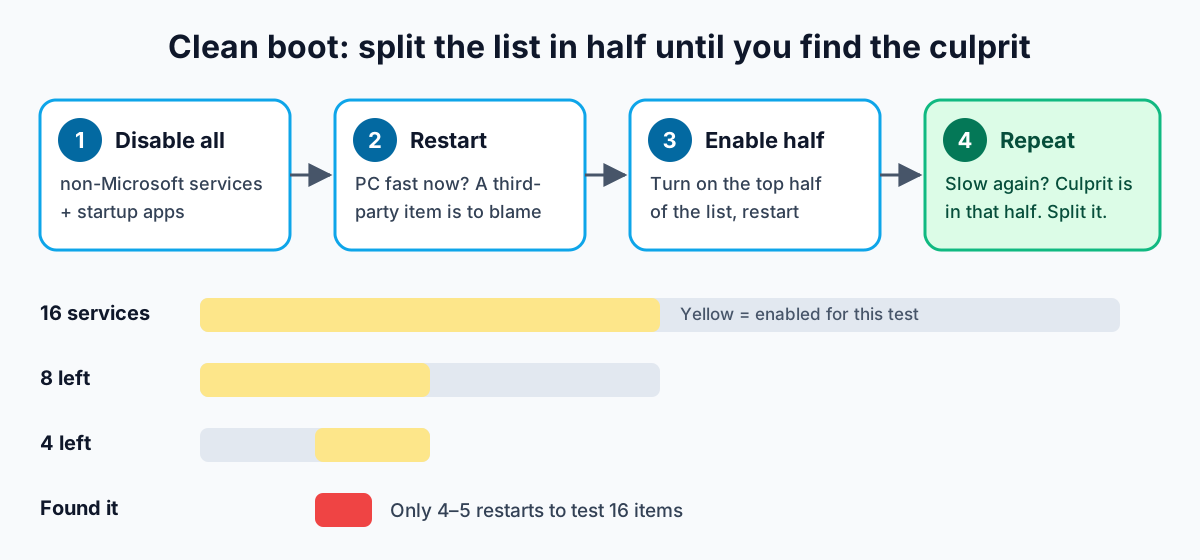
If the PC is still slow, a background service from third-party software may be the culprit. A clean boot starts Windows with only Microsoft services, so you can find it.
Disable non-Microsoft services
Press Win + R, type msconfig and press Enter. On the Services tab, tick Hide all Microsoft services, then click Disable all.
Disable startup items
On the Startup tab, click Open Task Manager and disable every startup app. Click OK and restart.
Re-enable half at a time
If the PC is fast now, re-enable half of the services and restart. Keep halving until the slowdown returns — the last group you enabled contains the problem program.
When to upgrade the hardware instead
Software fixes can't make old hardware new. It's time to upgrade (or replace) when:
- The PC still uses an HDD — get an SSD first; it's the best value upgrade.
- Memory usage stays above 85% after Fix 1 and Fix 8 — add RAM.
- The processor is more than 8–10 years old and the CPU sits at 100% during simple tasks like browsing.
- Drive health shows Caution or Bad — replace the drive now, before it fails.
Frequently asked questions
Why is my Windows PC suddenly slow?
A sudden slowdown is usually caused by a new startup program, a Windows update still running in the background, malware, or a hard drive that is full or failing. Open Task Manager (Ctrl + Shift + Esc) and check which column — CPU, Memory or Disk — is near 100% to find the cause.
Will resetting Windows make my PC faster?
Often yes, because a reset removes years of leftover programs and settings. But it is a last resort: back up your files first, and try the other fixes before resetting. If the drive is a slow or failing hard disk, a reset will not fix the hardware problem.
How much RAM do I need for Windows 11?
Windows 11 requires 4 GB, but 8 GB is the practical minimum for browsing and office work, and 16 GB is recommended for heavy multitasking, many browser tabs or light editing.
Is an SSD upgrade worth it for an old PC?
Yes. If your PC still uses a mechanical hard drive, replacing it with an SSD is the single biggest speed upgrade you can make. Boot times typically drop from around a minute to well under 20 seconds, and apps open several times faster.
Conclusion
Most slow PCs don't need replacing — they need a clean-up. Start with Task Manager to find the bottleneck, work through the free fixes (startup apps, storage, malware, power mode, visual effects and updates), then check drive health and RAM. If your computer still uses a hard drive, an SSD upgrade will make it feel like a new machine. Bookmark this slow Windows PC fix checklist and run through it every few months to keep Windows fast.
Written by FixNerdy
Hands-on computer technician sharing real fixes for Windows, software, hardware, printers and more — tested on real machines and explained in plain language. More about FixNerdy